
- Working modes and how they change behavior
- Drawing and connecting takeoff objects
- Editing one or many objects quickly
- Moving and rotating objects precisely
- Duct & piping auto branching and auto elbows
- Every tool in the secondary toolbar
Working modes
- Select (
1) Select one or many objects to move, rotate, retype, and bulk edit metadata. - Draw (
2) Draw new objects on the sheet. - Measure (
3) Measure lengths and point-to-point distance for reference. - Angle Finder (
4) Read angles on plan geometry to route duct/pipe accurately. - SymbolSight Open symbol matching flows as an assisted placement path within takeoff, when applicable.
Draw takeoff objects
Before drawing, pick the correct type in the Inspector, or use the Duct (A key) or Pipe (S key) shortcuts.Basic placement flow
- Enter Draw mode.
- Choose a type (for example Duct, Pipe, Fitting, Accessory, Equipment).
- Set dimensions and metadata in the Inspector.
- Click to place points, runs, or objects on the canvas.
- Press
Escto end the current draw action and start a new object.
Connected runs for duct and pipe
When drawing line-based systems:- Click once to start a run
- Continue clicking to add segments
- Hit “End run” or escape to finish this segment
- New segments inherit active type + relevant Inspector settings
Smart behavior while drawing
Depending on type and context, drawing can apply automatic inserted items:- Auto place fittings like elbows at angle transitions
- Auto place connections like taps when a branch off a main trunck is detected
Move and rotate objects
Use Select mode for geometric edits.Move
- Drag selected object(s) to reposition freely
- Multi-select move keeps relative spacing between selected objects
Rotate
- Select an object and use the rotate handle or rotate action
- Rotate around the active pivot/anchor point
Edit one object
Select any object to edit its properties in the Inspector. Edits apply immediately and update quantities/live takeoff totals.Bulk edit many objects
When in select mode, click on the plan and drag to form a selection zone to edit multiple objects at once.- Select multiple compatible objects.
- Select update option in Inspector.
- Apply change across multiple objects (there will be a message saying how many total items are compatible).
- Confirm canvas + quantity updates.
- Setting system values across a whole branch
- Updating connector/material choices at scale
Auto branching and auto elbows (duct and pipe)
Takeoff supports automatically insertable objects for duct/pipe systems.Auto branching
When you branch from a main run, the app can detect a valid branch condition and insert branch geometry/fitting behavior automatically. Expected behavior:- Maintains continuity of the main run
- Creates branch connection at the selected junction
- Carries forward compatible system metadata
- Reduces manual fitting placement at tee/tap conditions
Auto elbows
When changing direction in a run, the app can place elbow behavior automatically at turns. Expected behavior:- Detects directional change between consecutive segments
- Inserts elbow-compatible transition at the corner
- Keeps segment connectivity and measurement continuity intact
- Adapts to duct/pipe type context while preserving your active metadata
Auto transition
When dimensions change between one connected object or another, we insert a transition peice automatically.Taking off vertical items
Takeoff vertical items in two ways:-
If an item is straight up and down, open the Type picker in the Inspector and select “Duct vertical” or “Pipe Vertical”. This allows placement of a Vertical Stack, which places a single geometry on the canvas that contains multiple child items to represent a vertical stack of objects.
- We pre-fill the stack items with two 90º elbows and a fill item, but you can adjust this as needed.
- Fill items fill remaining space between the starting elevation and ending elevation of the vertical stack
-
If an item has “run” in addition to “rise” and is connected to another item, change the elevation of the pending object while in
Createmode, then click to automatically generate a vertical stack with “run” the same distance as the size of the object you just clicked.Tip: Hold theEkey when taking off a run to activate a “Quick elevation picker”. Move your mouse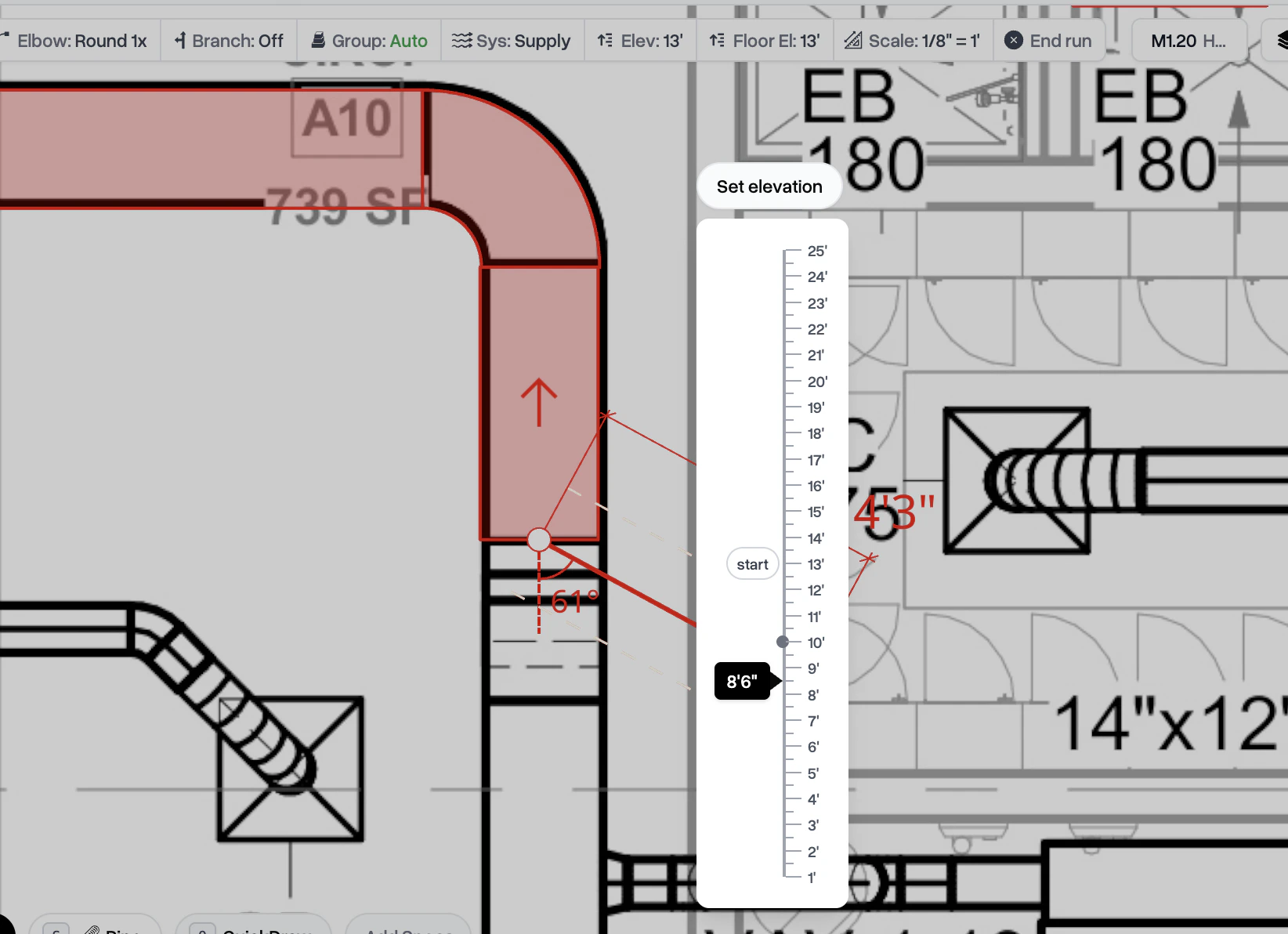
Secondary toolbar reference
The secondary toolbar appears while drawing and gives fast, context-aware controls.- System selector Apply the target system (for example supply/return/exhaust or pipe system).
- Segment continuation toggle Continue from the last endpoint automatically when placing sequential runs.
- Auto branch toggle Enable automatic branch behavior at valid connection points.
- Auto elbow toggle Enable automatic elbow behavior on direction changes.
- Elevation field Set placement elevation for upcoming objects.
- Finish/Cancel controls Complete current draw action or cancel and reset.
Recommended takeoff workflow
- Set page scale and confirm type defaults.
- Draw major trunks/mains first.
- Add branches with auto branch + auto elbow enabled.
- Switch to Select mode for move/rotate cleanup.
- Bulk edit shared metadata by system/zone.
- Final QA pass with Measure and Angle Finder.