
Dashboard
The Dashboard is where you first arrive in Canaveral when you sign in. See an overview of your Projects, settings, Files, and Library.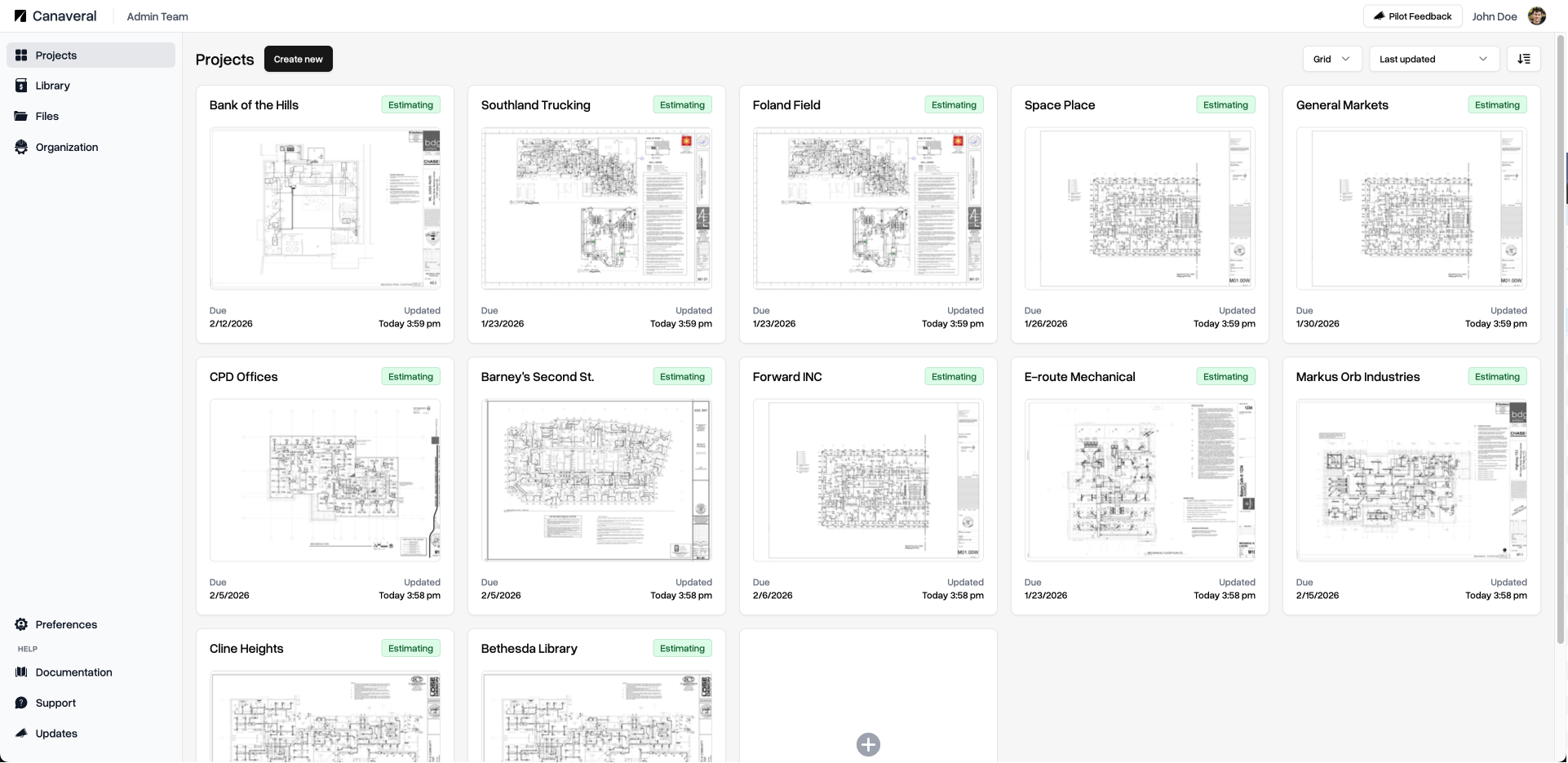
Organization
Referring to your organization’s Canaveral account (separate from your individual user account). The Organization encompasses all of your companies projects, users, settings, price books, and Parts Library.User
Refers to your own single user account, with your personal settings, name, and avatar. Organizations have multiple users attached to them.Project
An individual “Job” or “Project” you are bidding on. Projects can be created and viewed in the Dashboard Project page. Click on a project to see more information about the Project, including status, address, contact information, files, and more.File
Files references any digital asset related to your Project. This encompasses both the full uploaded project PDF, as well as the Takeoff-specific pages PDF that we generate for you automatically on project upload. It also references any exported Report files associated with a project.Report
Reports are any exported Takeoff report you generate. We currently support CSV, Excel, and PDF export types. Generate custom reports from the Takeoff view using the Create Report button in the bottom left of the sidebar.
Takeoff View
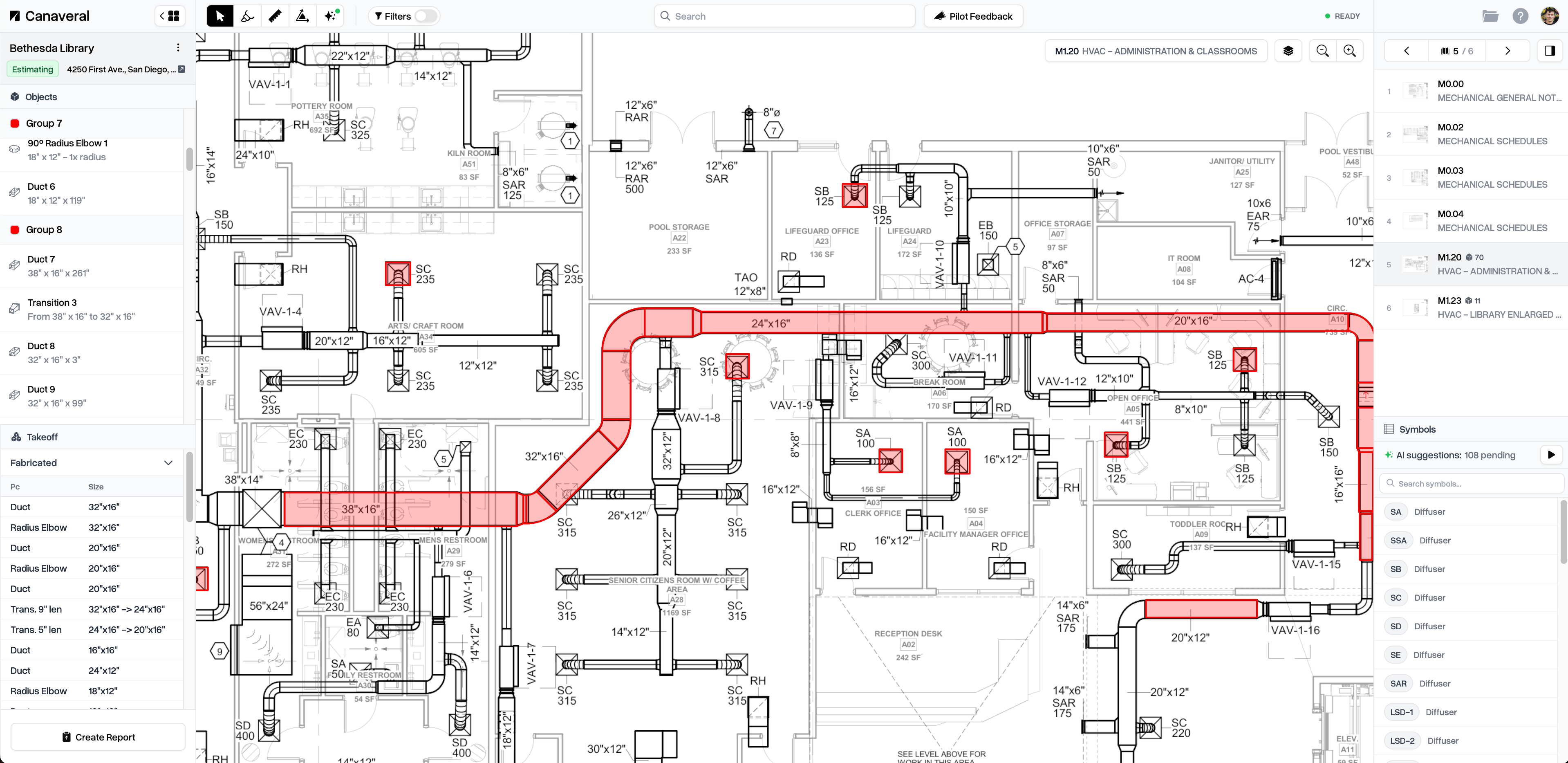
The takeoff view is where most of your work in Canaveral gets done. This allows you to draw on your project sheets to create takeoff objects, make use of our AI features, and inspect takeoff object metadata. Access the takeoff view of a project by clicking on a Project in the Projects page, then clicking on the greenTakeoff button. You will also be automatically routed to the Takeoff View upon creating a project
Takeoff Object
Takeoff Objects are the actual items you are counting, measuring, and editing in your Takeoff View. Things like Ducts, Pipes, Equipment, Fittings, etc. Takeoff objects have their own specific metadata editable in the Inspector.Inspector
The Inspector is the section along the bottom of the Takeoff View that lets you set all kinds of metadata related to your Takeoff Objects.
Part
A Part is an item in your Part Library, found atDashboard > Library > Parts . A Part is used to resolve generic takeoff objects in your Takeoff view to a specific Part in your library, allowing you to drive accurate estimates from your takeoff that links to real-world items and costs. Read more about Parts here.
Assembly
Assemblies are groups of Takeoff objects that you can define into reusable bundles. If a specific group of takeoff objects keeps occuring into your plan, convert it into an assembly for faster takeoff. Read more about Assemblies here.Page/Sheet
A page/sheet is a single shee from your uploaded plan PDFs. It can get a name and description (auto-detected by Canaveral to start). Sheets can be assigned a type at upload, eitherPlan or Reference . Only Plan pages are eligible for SymbolSight and Quickdraw AI features.