> ## Documentation Index
> Fetch the complete documentation index at: https://docs.canaveral.ai/llms.txt
> Use this file to discover all available pages before exploring further.
# Revisions
The Revisions feature in Canaveral allows you to upload revised PDFs, compare visually against old plans, and see a detailed list of what changed, so you never miss a detail.
## Create a Revision
Navigate to your project page. To begin with a new revision, click the "Create Revision" button in the top right, next to "Create report".
 Click "Create Revision". A modal will appear allowing you to set the revision name as well as upload the revised document.
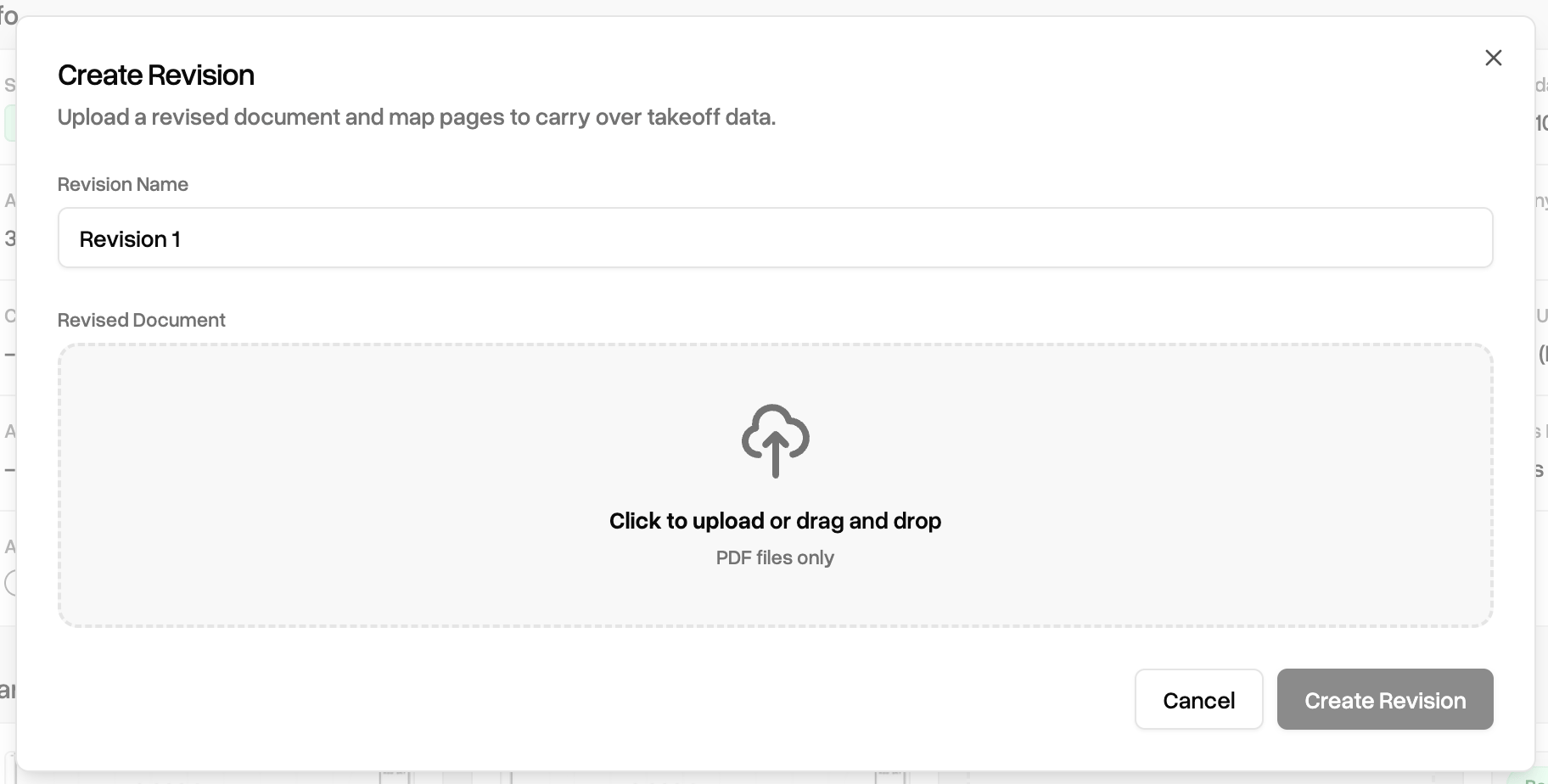 After selecting a file, Canaveral will upload, process, and present the page mapping interface.
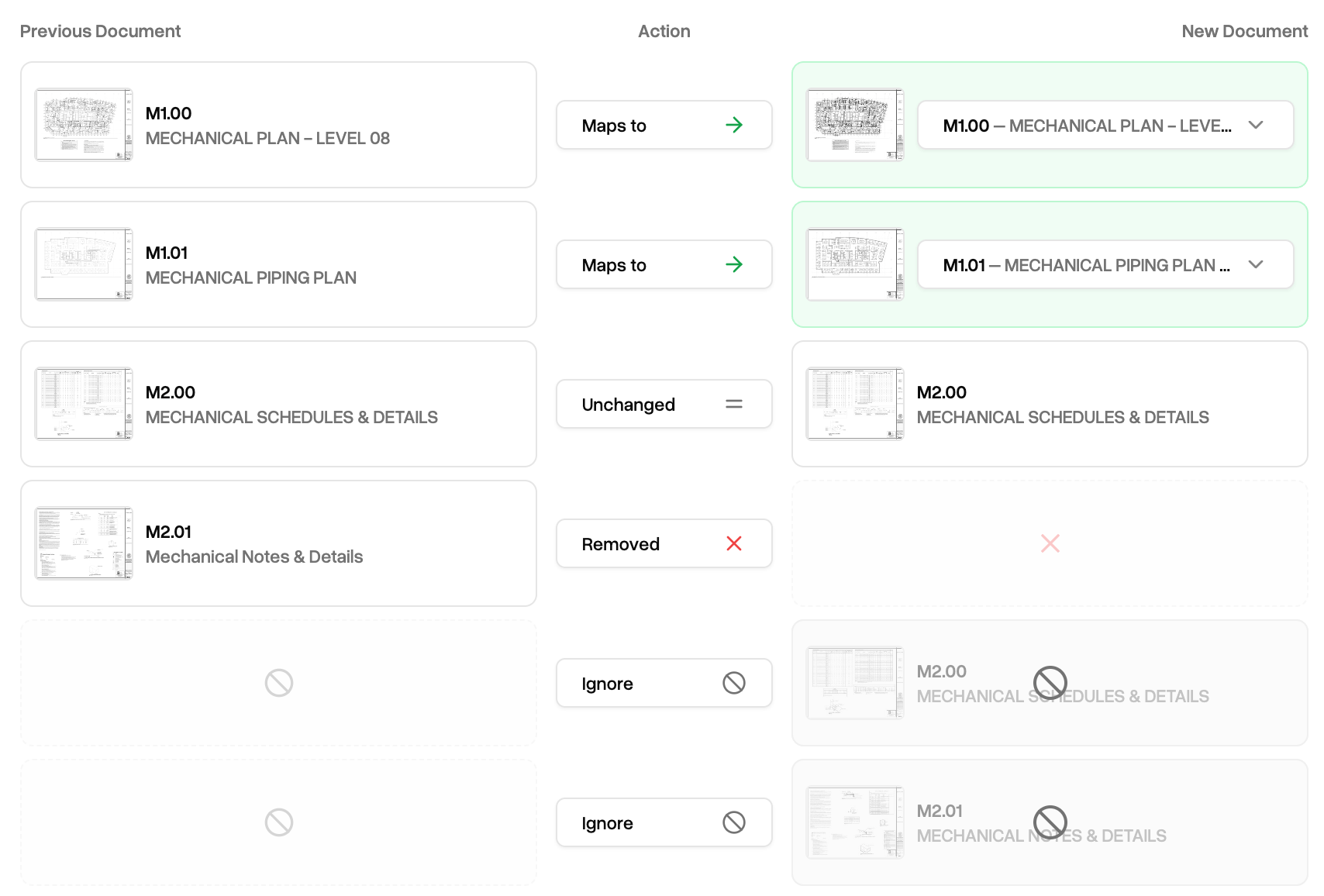 Page mapping allows you to carry over existing takeoff objects to a new page for editing. You can also choose to remove previous pages, ignore new pages, or add new pages.
## Automatic Change Detection
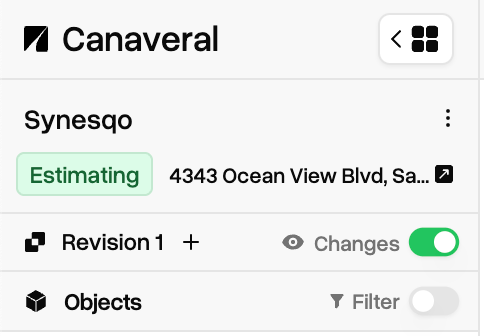
Once the document is uploaded and processed, you will be taken to the Takeoff page. You will see a "Revision \[N]" row near the top right of the Takeoff. Toggle the `Changes` switch to see the Revision Changes panel as well as change regions in the on the plans. (See below)
Page mapping allows you to carry over existing takeoff objects to a new page for editing. You can also choose to remove previous pages, ignore new pages, or add new pages.
## Automatic Change Detection
Once the document is uploaded and processed, you will be taken to the Takeoff page. You will see a "Revision \[N]" row near the top right of the Takeoff. Toggle the `Changes` switch to see the Revision Changes panel as well as change regions in the on the plans. (See below)
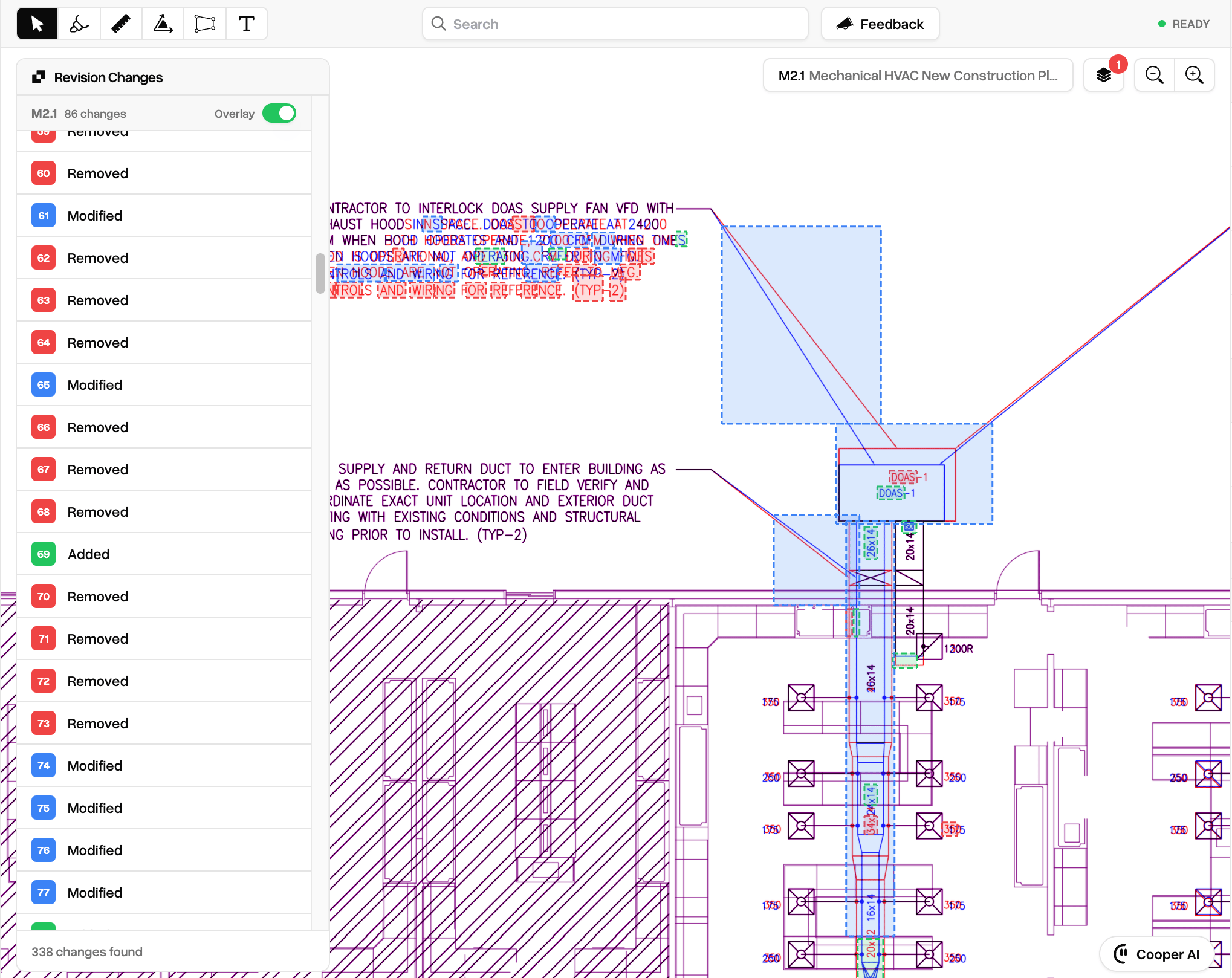 The Revision Changes panel will contain a list of all detected additions, removals, or modifications. Click an item in the list to move the see the exact region in the plan. Toggle the overlay switch for any given page to see an overlay of the matching page from the previous version
## Overlays
Overlay any page over another using the new Page overlays section inside the Layers dropdown.
Select your base page from the current version, and the overlay target from either the current or the previous version.
Then, select the Blend mode:
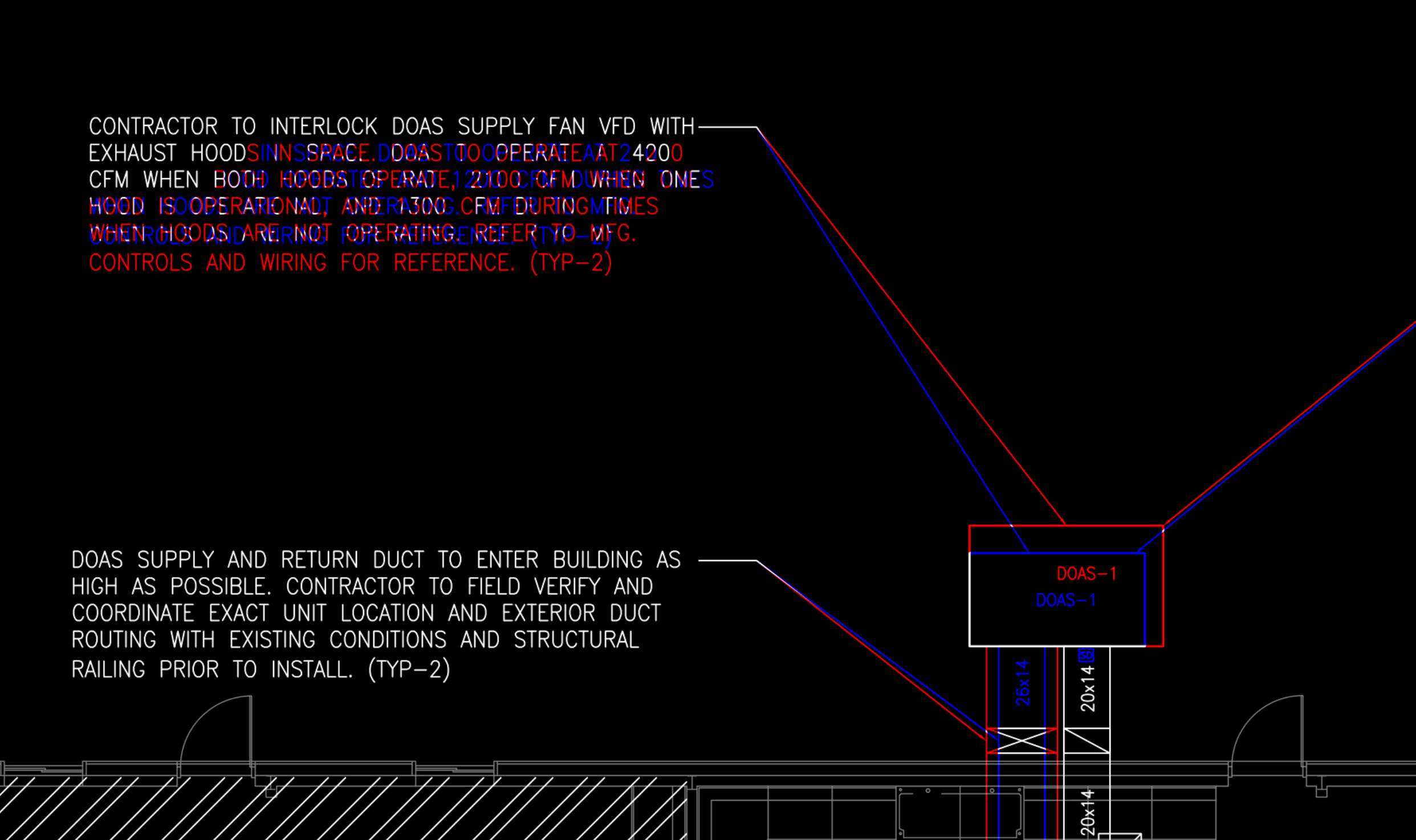
* `Difference` produces a color treatment such that "new" content from the current version appears blue, "removed" content from the previous version appears red, and "unchanged" content appears white/black (depending on light/dark mode).
* `Solid` produces a solid overlay with no color change. Useful when wanting to compare architectural pages to mechanical, for example.
The Revision Changes panel will contain a list of all detected additions, removals, or modifications. Click an item in the list to move the see the exact region in the plan. Toggle the overlay switch for any given page to see an overlay of the matching page from the previous version
## Overlays
Overlay any page over another using the new Page overlays section inside the Layers dropdown.
Select your base page from the current version, and the overlay target from either the current or the previous version.
Then, select the Blend mode:
* `Difference` produces a color treatment such that "new" content from the current version appears blue, "removed" content from the previous version appears red, and "unchanged" content appears white/black (depending on light/dark mode).
* `Solid` produces a solid overlay with no color change. Useful when wanting to compare architectural pages to mechanical, for example.
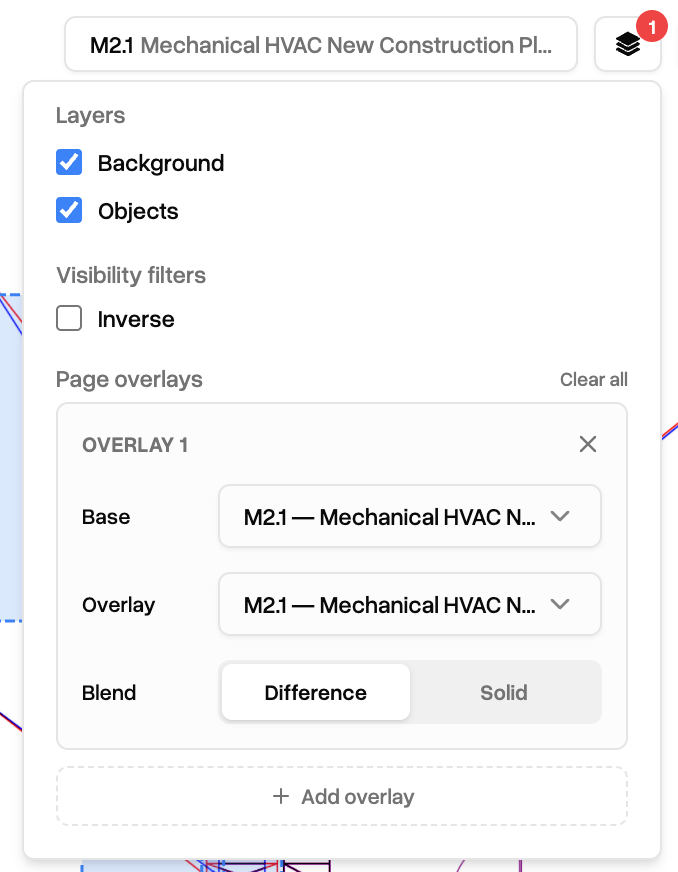 Only one overlay per page at a time.
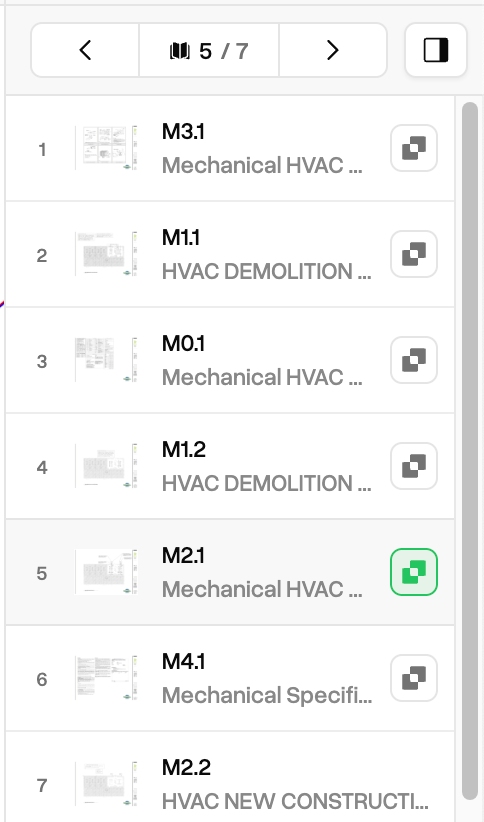
 When a project has a revision, pages that can be compared to previous versions have a new `Compare` button in the right of the page list item. Clicking this button automatically toggles the an overlay definition with the selected page as the base and its predecessor as the overlay.
 ## Reverting a revision
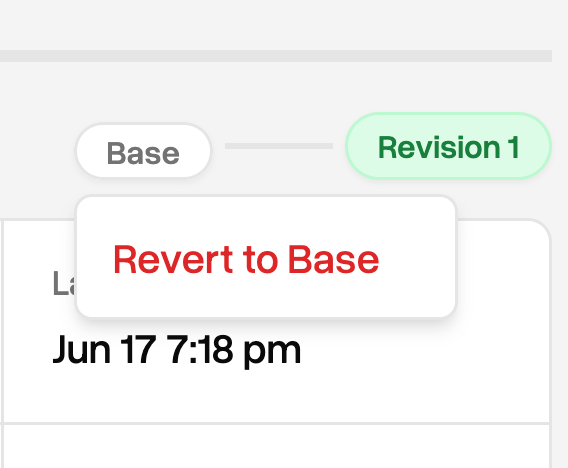
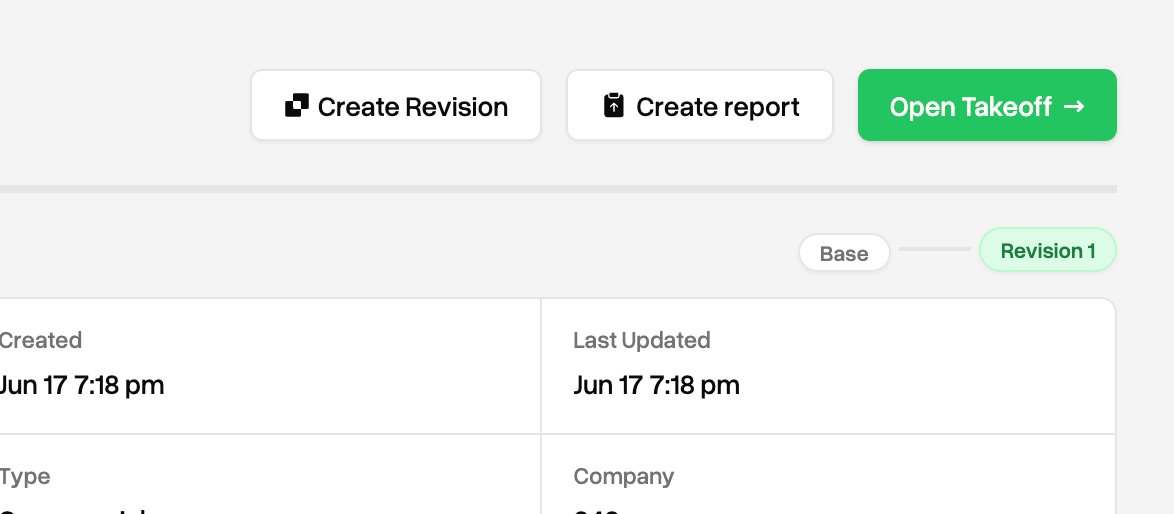 After creating a revision, a revision breadcrumb will appear below the `Open Takeoff` button. The green pill will show the current active version. Click on one of the white pills to see an option to revert.
**Reverting to a specific revision will delete any subsequent versions, including takeoff data, so use this sparingly.**
After creating a revision, a revision breadcrumb will appear below the `Open Takeoff` button. The green pill will show the current active version. Click on one of the white pills to see an option to revert.
**Reverting to a specific revision will delete any subsequent versions, including takeoff data, so use this sparingly.**