> ## Documentation Index
> Fetch the complete documentation index at: https://docs.canaveral.ai/llms.txt
> Use this file to discover all available pages before exploring further.
# Reports
Build custom reports in Canaveral out of Blocks. Blocks can be data tables, text, headers, and more. Configure your columns, ordering, and. When your report configuration is ready, export to CSV, Excel, or PDF formats. Lets get started:
## Trigger the Export takeoff modal
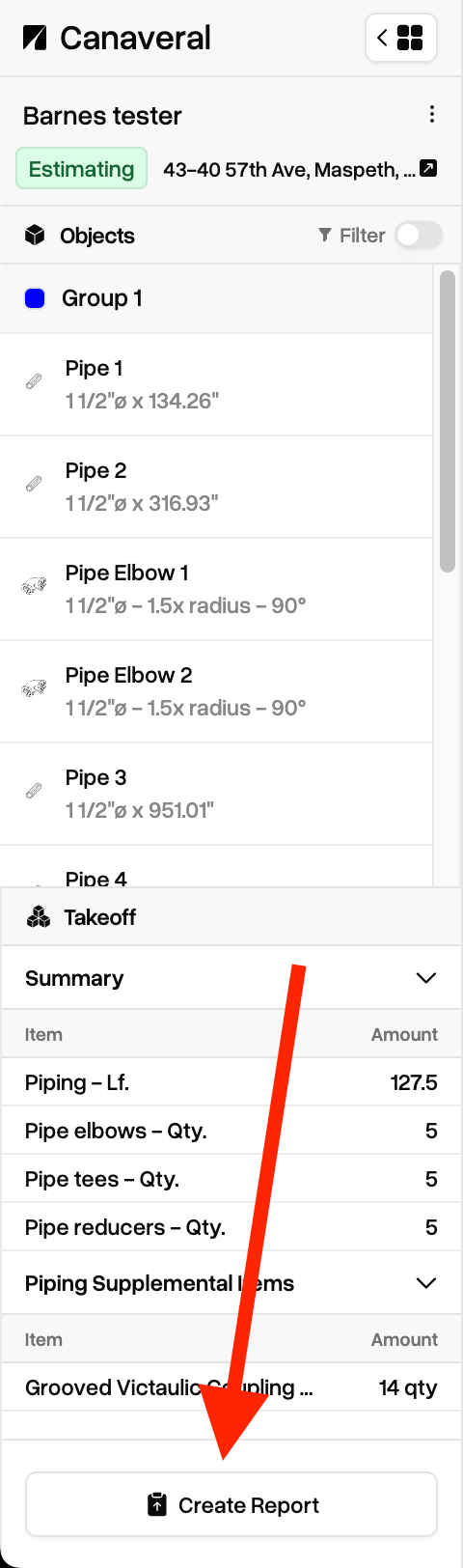 You can generate a report for a project in two places in Canaveral. The first is on the left sidebar of the Takeoff view. There is a `Create Report` button in the bottom of the sidebar underneath the Takeoff summary section.
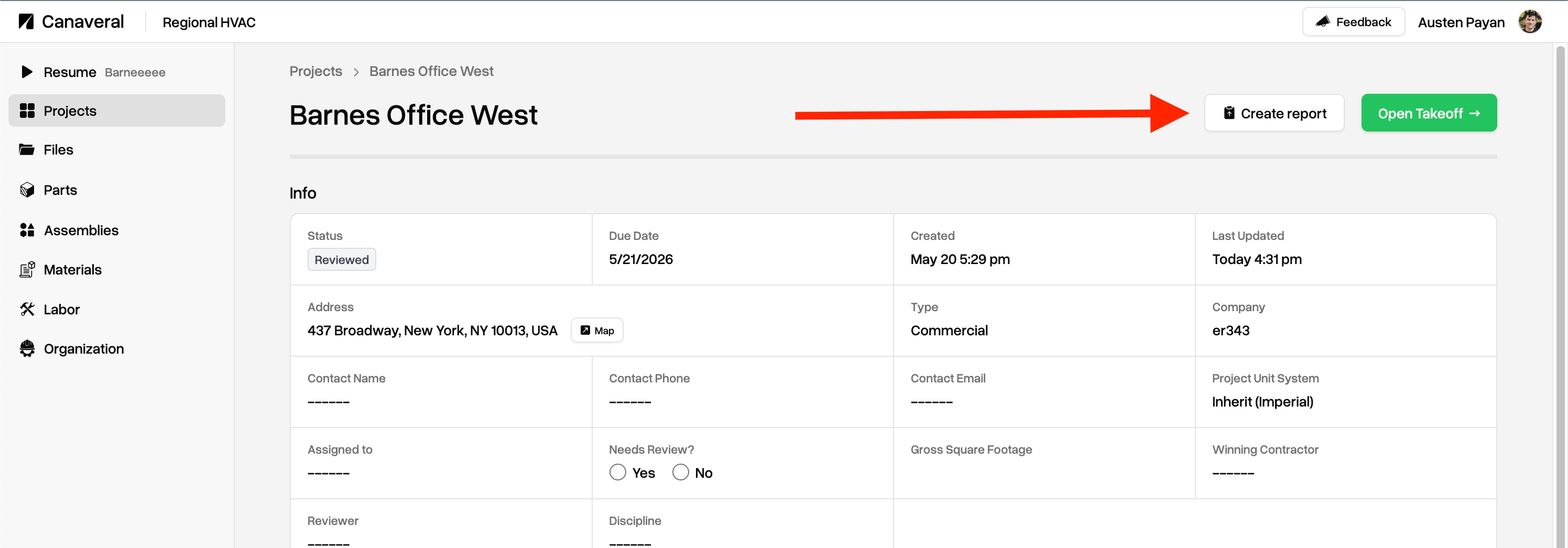
The second place is the `Create Report` button in the project's overview page in your Dashboard. You'll find this directly to the left of the green `Open Takeoff` button.
You can generate a report for a project in two places in Canaveral. The first is on the left sidebar of the Takeoff view. There is a `Create Report` button in the bottom of the sidebar underneath the Takeoff summary section.
The second place is the `Create Report` button in the project's overview page in your Dashboard. You'll find this directly to the left of the green `Open Takeoff` button.
 Clicking on either of these buttons will open up the Export takeoff modal. Continue to the next section below.
## Configure report content
Clicking on either of these buttons will open up the Export takeoff modal. Continue to the next section below.
## Configure report content
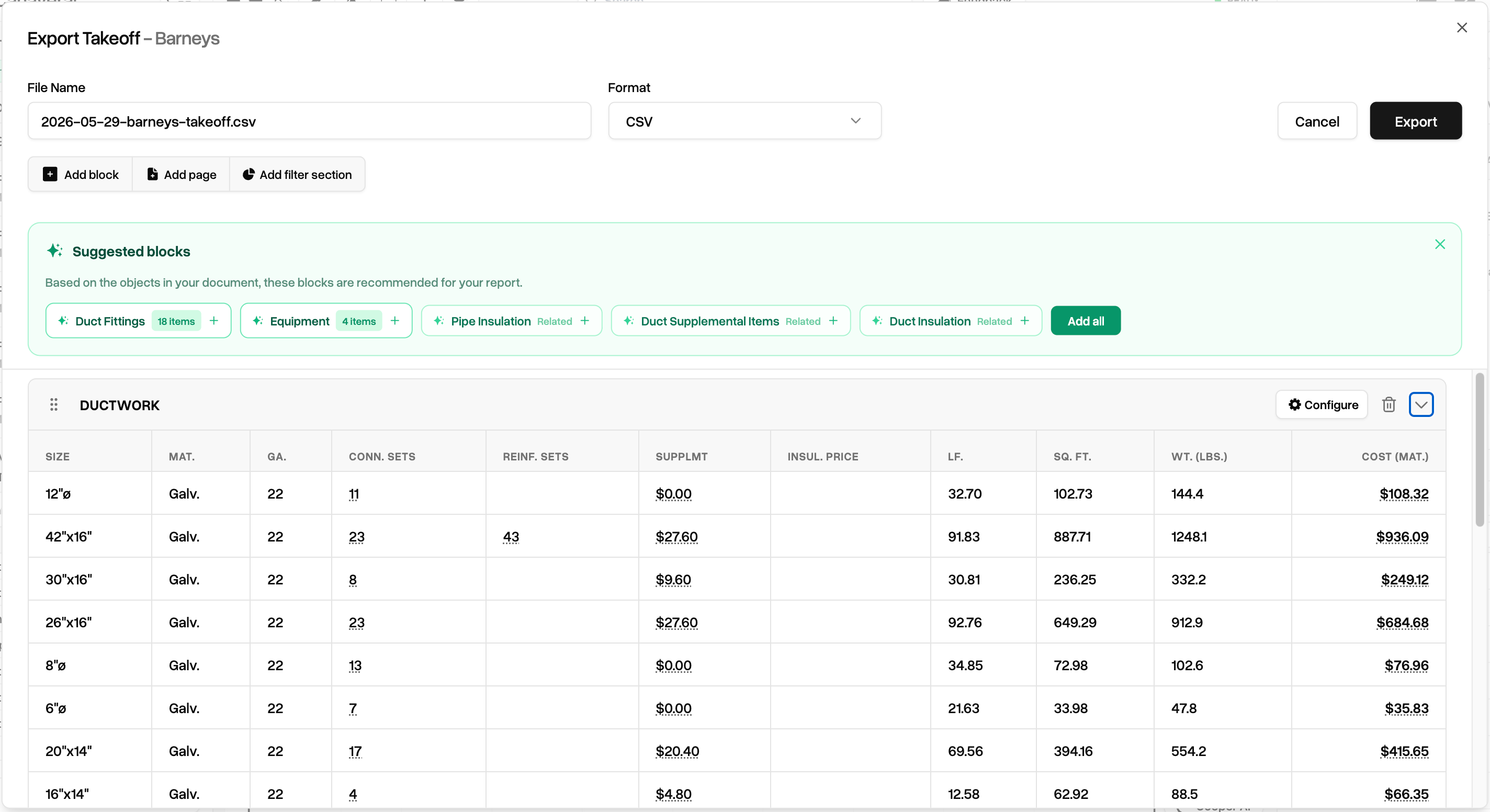 Clicking on either of the buttons mentioned above will open the Export Takeoff modal. There's alot going on here, so lets go through the sections step by step.
### File name and format
Clicking on either of the buttons mentioned above will open the Export Takeoff modal. There's alot going on here, so lets go through the sections step by step.
### File name and format
 Near the top of the Export Takeoff modal, edit the file name and desired format for your exported file. The file name will default to a `YYYY-MM-DD` string appended with the project name and `takeoff` at the end, but you can edit to your liking.
Supported formats are CSV, Excel, and PDFs.
Near the top of the Export Takeoff modal, edit the file name and desired format for your exported file. The file name will default to a `YYYY-MM-DD` string appended with the project name and `takeoff` at the end, but you can edit to your liking.
Supported formats are CSV, Excel, and PDFs.
 Next is the action buttons, `Add block` , `Add page`, and `Add filter section`.
### Blocks
**Blocks** are exactly what they sound like, "building blocks" of a report. Blocks can be tables of data, raw text, headers, and more, that make up a report configuration.
Clicking `Add block` opens up our available blocks panel. Choose from ductwork or piping related tables, headers or raw text blocks, or a number of other blocks useful for specific facets of Mechanical estimating.
Next is the action buttons, `Add block` , `Add page`, and `Add filter section`.
### Blocks
**Blocks** are exactly what they sound like, "building blocks" of a report. Blocks can be tables of data, raw text, headers, and more, that make up a report configuration.
Clicking `Add block` opens up our available blocks panel. Choose from ductwork or piping related tables, headers or raw text blocks, or a number of other blocks useful for specific facets of Mechanical estimating.
 ### Pages
Clicking `Add page` adds a new page when creating a PDF report, or a new tab in a CSV or Excel sheet.
### Pages
Clicking `Add page` adds a new page when creating a PDF report, or a new tab in a CSV or Excel sheet.
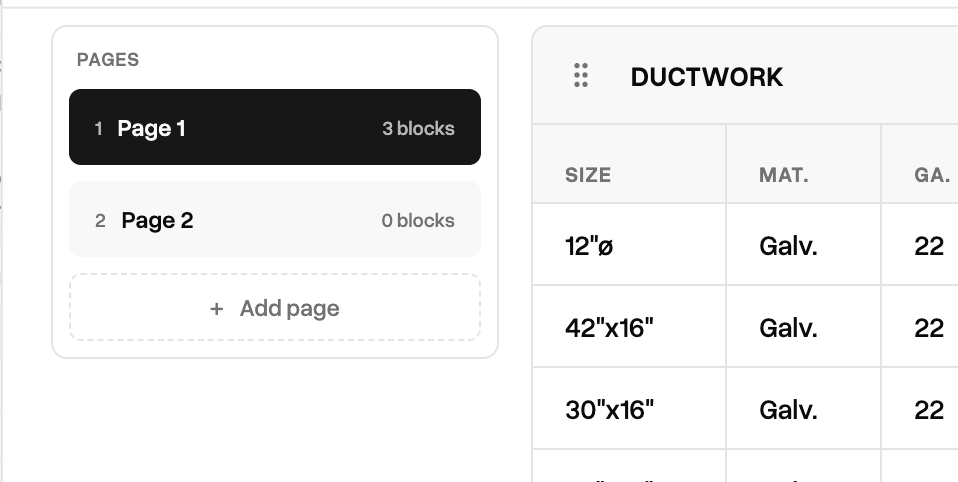 When your report configuration has more than one page, you will see the pages widget on the left of the blocks content. Click a page button to see the content for that page. Drag and drop blocks between pages for easy layout editing.
### Filter sections
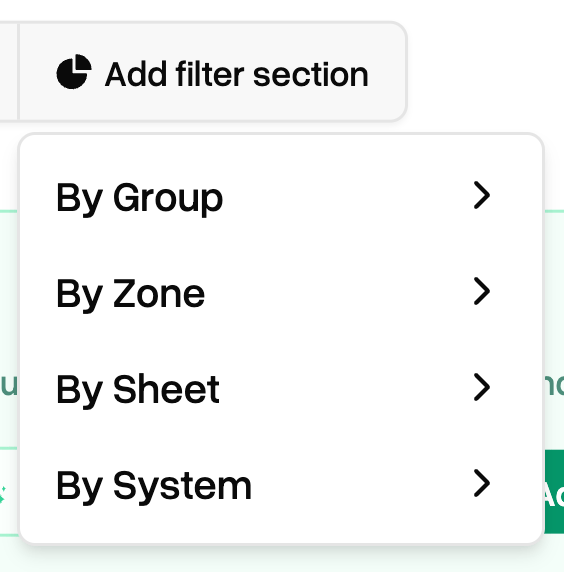
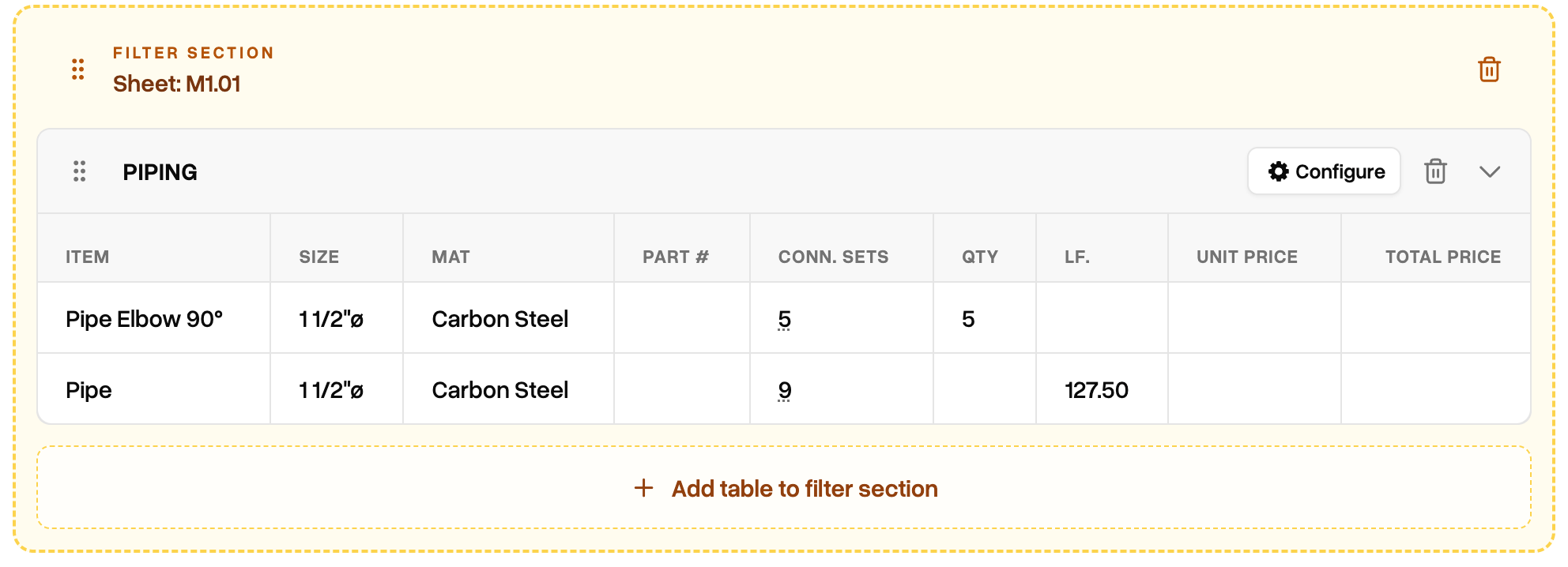
Filter sections let you slice takeoff data by group, zone, sheet, or system. Adding blocks to a filter section (or dragging existing blocks into them) will automatically scope the data within by that specific filter. This is useful if you want to segment your report by certain plan sheets, or only supply duct, or a specific Canaveral group you have created in your takeoff objects.
When your report configuration has more than one page, you will see the pages widget on the left of the blocks content. Click a page button to see the content for that page. Drag and drop blocks between pages for easy layout editing.
### Filter sections
Filter sections let you slice takeoff data by group, zone, sheet, or system. Adding blocks to a filter section (or dragging existing blocks into them) will automatically scope the data within by that specific filter. This is useful if you want to segment your report by certain plan sheets, or only supply duct, or a specific Canaveral group you have created in your takeoff objects.
 ### Data tables
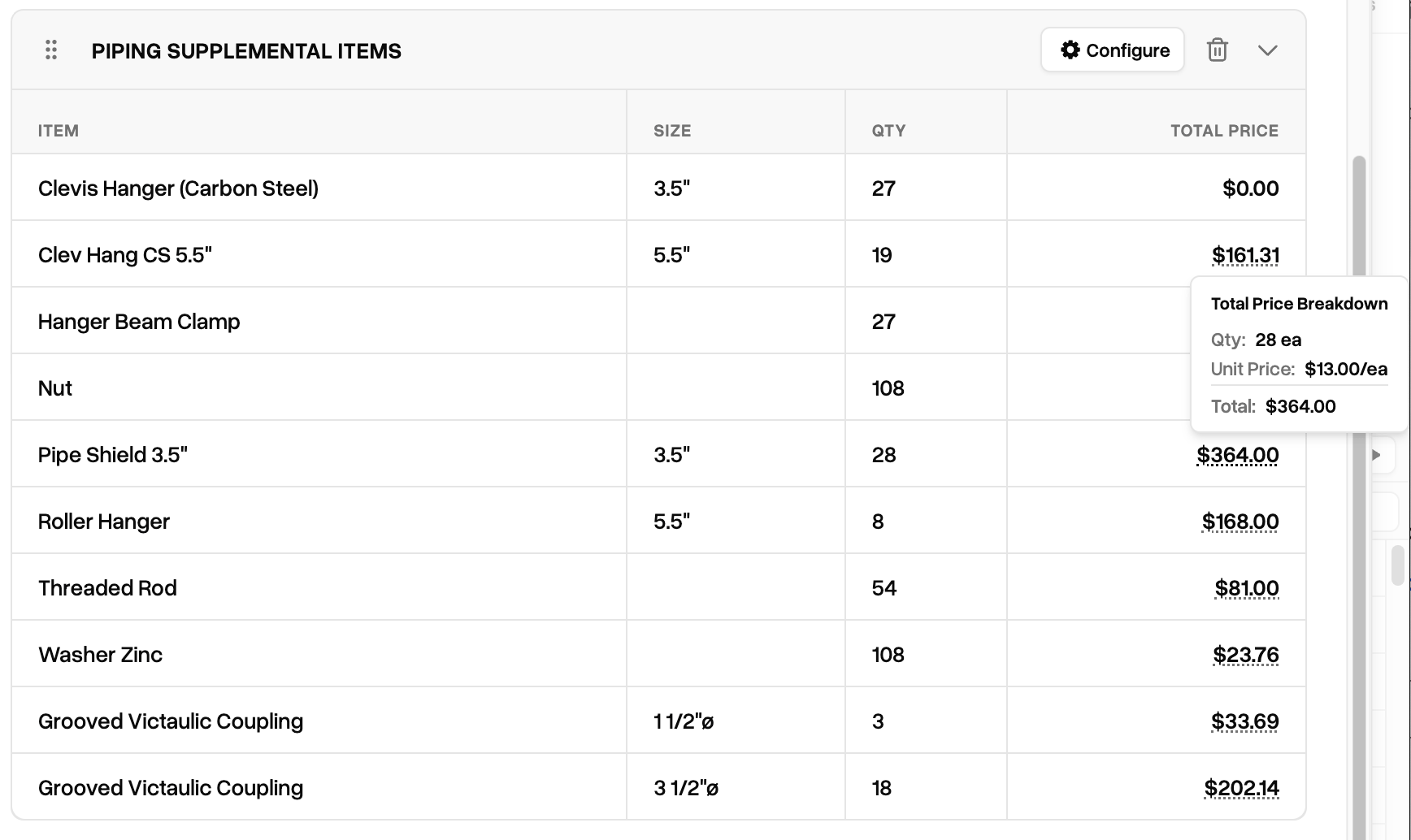
Data tables in Canaveral are blocks that display takeoff data. There are numerous data table blocks described above. They typically look like this, with identifier columns on the left and metadata and price columns on the right.
### Data tables
Data tables in Canaveral are blocks that display takeoff data. There are numerous data table blocks described above. They typically look like this, with identifier columns on the left and metadata and price columns on the right.
 ### Columns
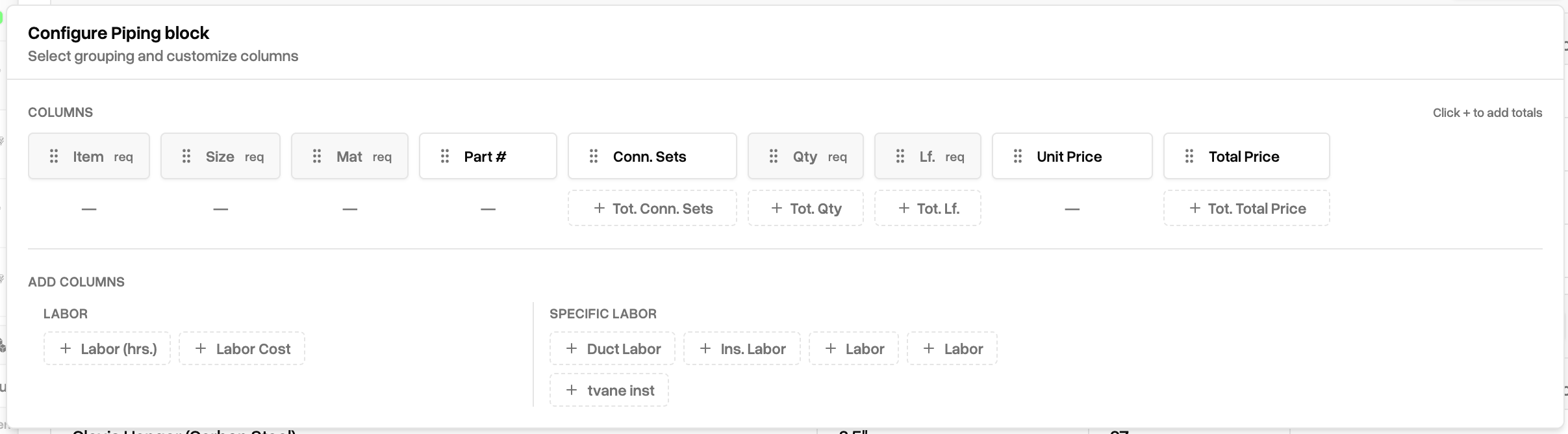
Columns in data tables are configurable. Grayed-out columns are required, but other columns are removable, and all columns can be rearranged to different orders within the table.
### Columns
Columns in data tables are configurable. Grayed-out columns are required, but other columns are removable, and all columns can be rearranged to different orders within the table.
 ### Sorting
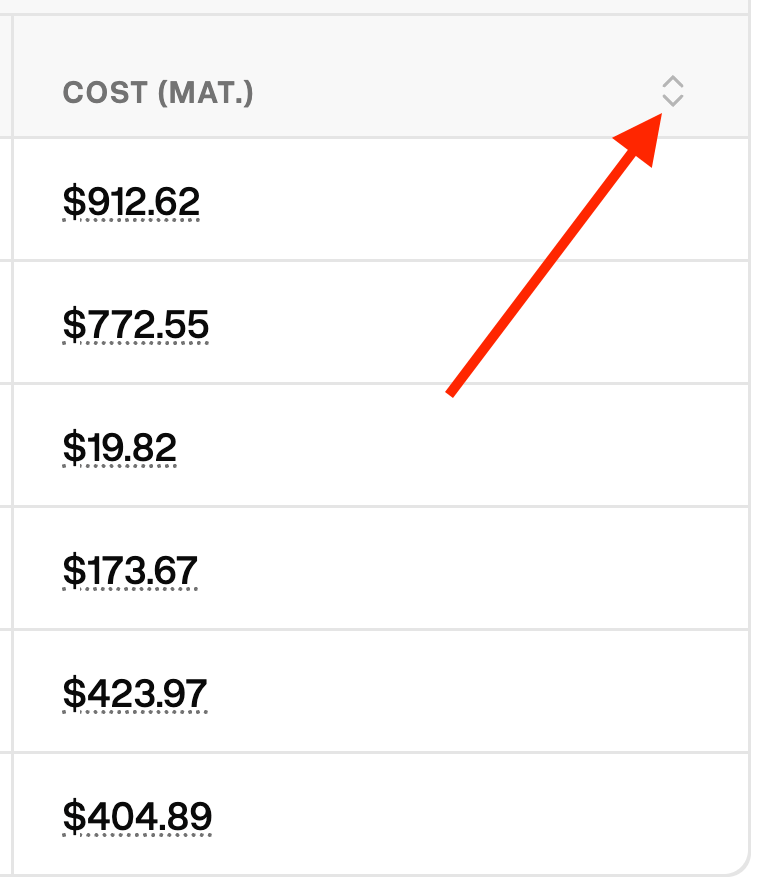 Click the double caret icon in the top right of any column to cycle between ascending, descending, and default sorting for that column.
One column can be sorted at a time, and it will affect every row in a table
### Rounding
Click the double caret icon in the top right of any column to cycle between ascending, descending, and default sorting for that column.
One column can be sorted at a time, and it will affect every row in a table
### Rounding
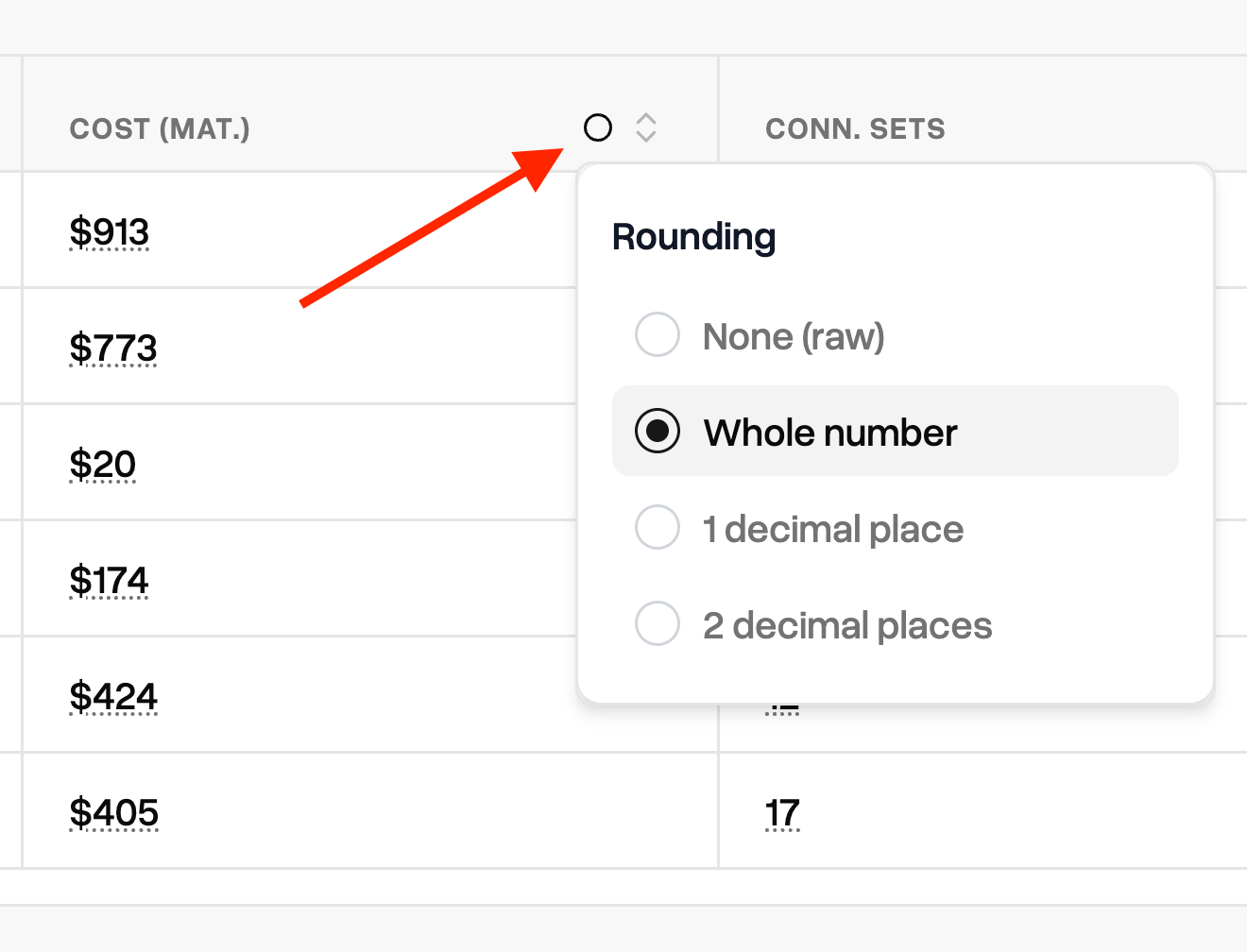 Click the circle icon in the top right of number-based columns to toggle rounding. Choose from None (raw value), whole number, 1 & 2 decimal place rounding.
Selecting a rounding option will apply visually in the report builder as well as in the exported data.
## Finalize & Export
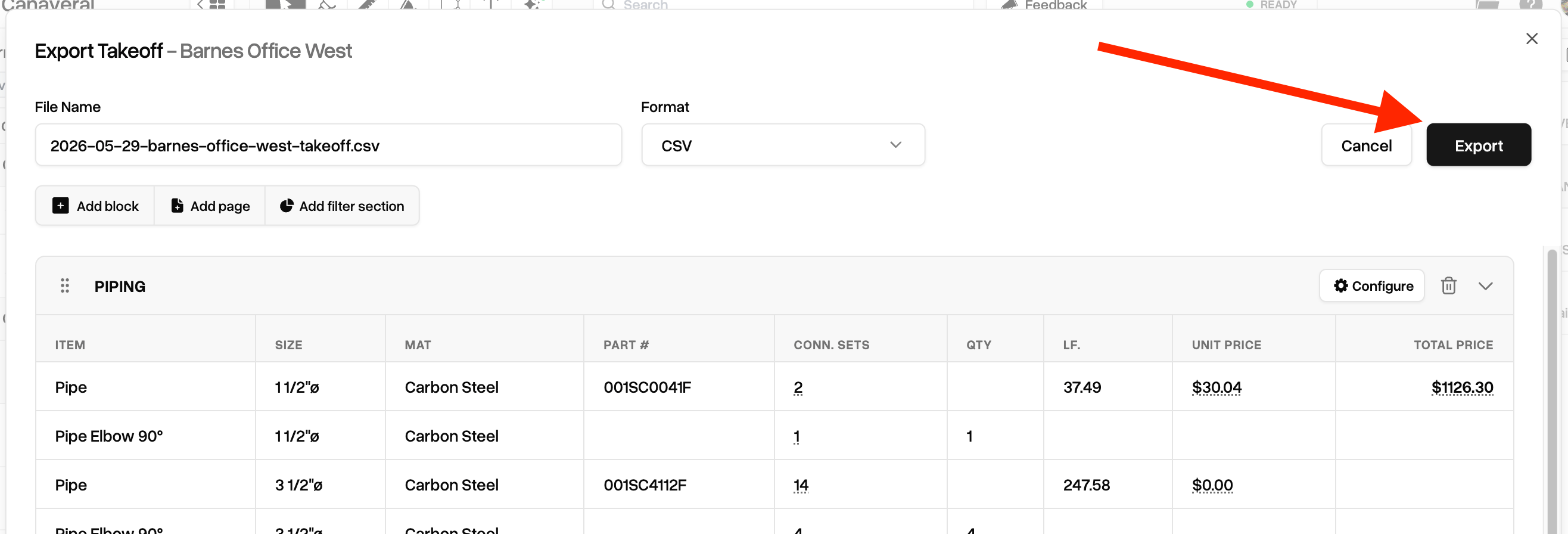
When you are ready to generate your report, click the `Export` button.
Click the circle icon in the top right of number-based columns to toggle rounding. Choose from None (raw value), whole number, 1 & 2 decimal place rounding.
Selecting a rounding option will apply visually in the report builder as well as in the exported data.
## Finalize & Export
When you are ready to generate your report, click the `Export` button.
 Once exported, the file will download to your local computer automatically. The file can also be found going forward in the Files section of the project page in your dashboard.
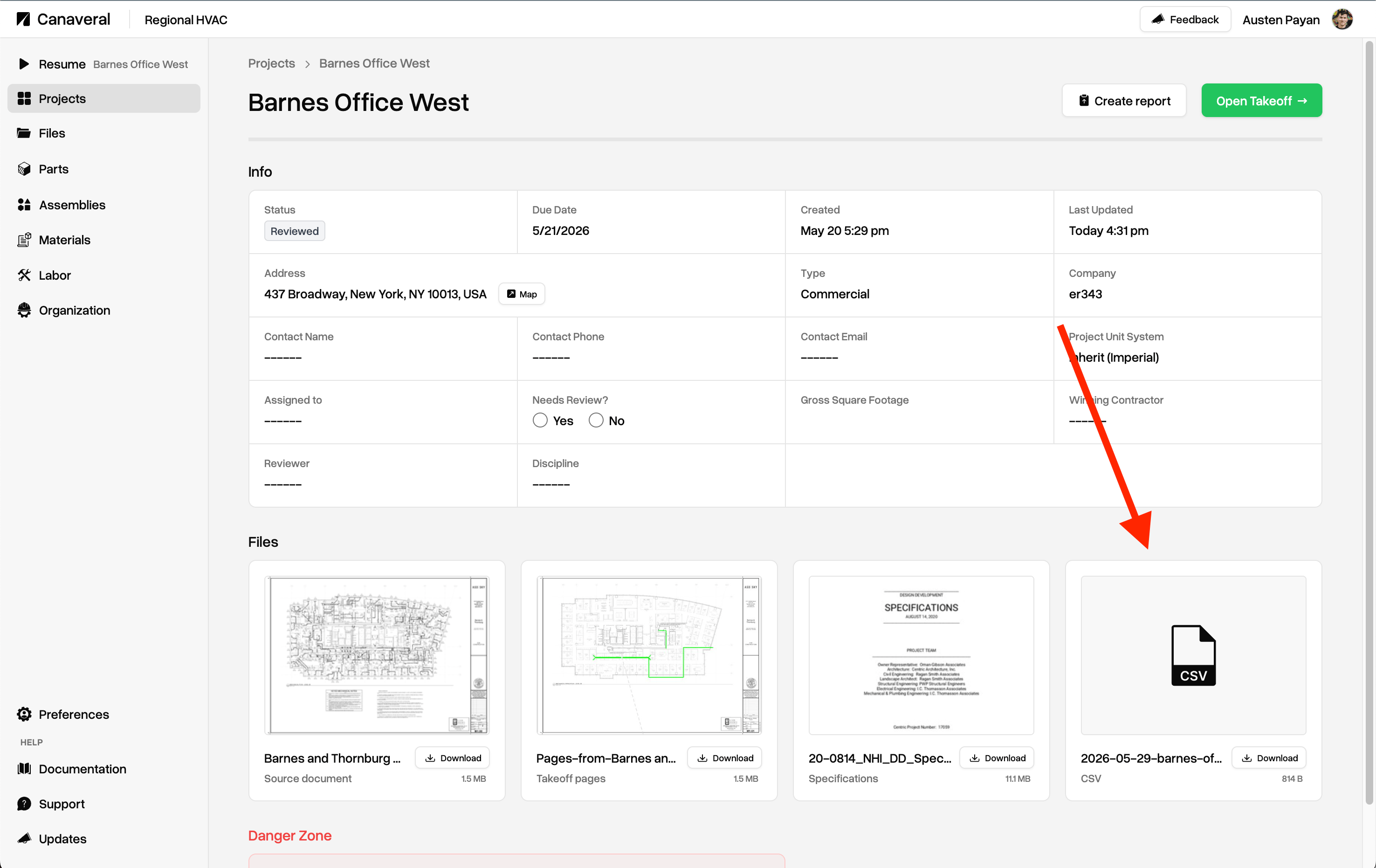 It can also be found in the Files page as well, visible to your entire team and always connected to the project in perpetuity.